Create a PowerPoint
Overview
- Turns the verses shown on a search-result page into a .pptx file.
- Only the displayed verses are included. No AI summaries or study notes, and no AI is used.
- Not connected to the daily limit of 20 Bible studies. Nothing is deducted.
- The file is created on your device. VerseAI does not store generated decks.
Quick start
- Search — find verses by situation, topic, or reference.
- Open the Bible tab — on the results page, select the Bible tab.
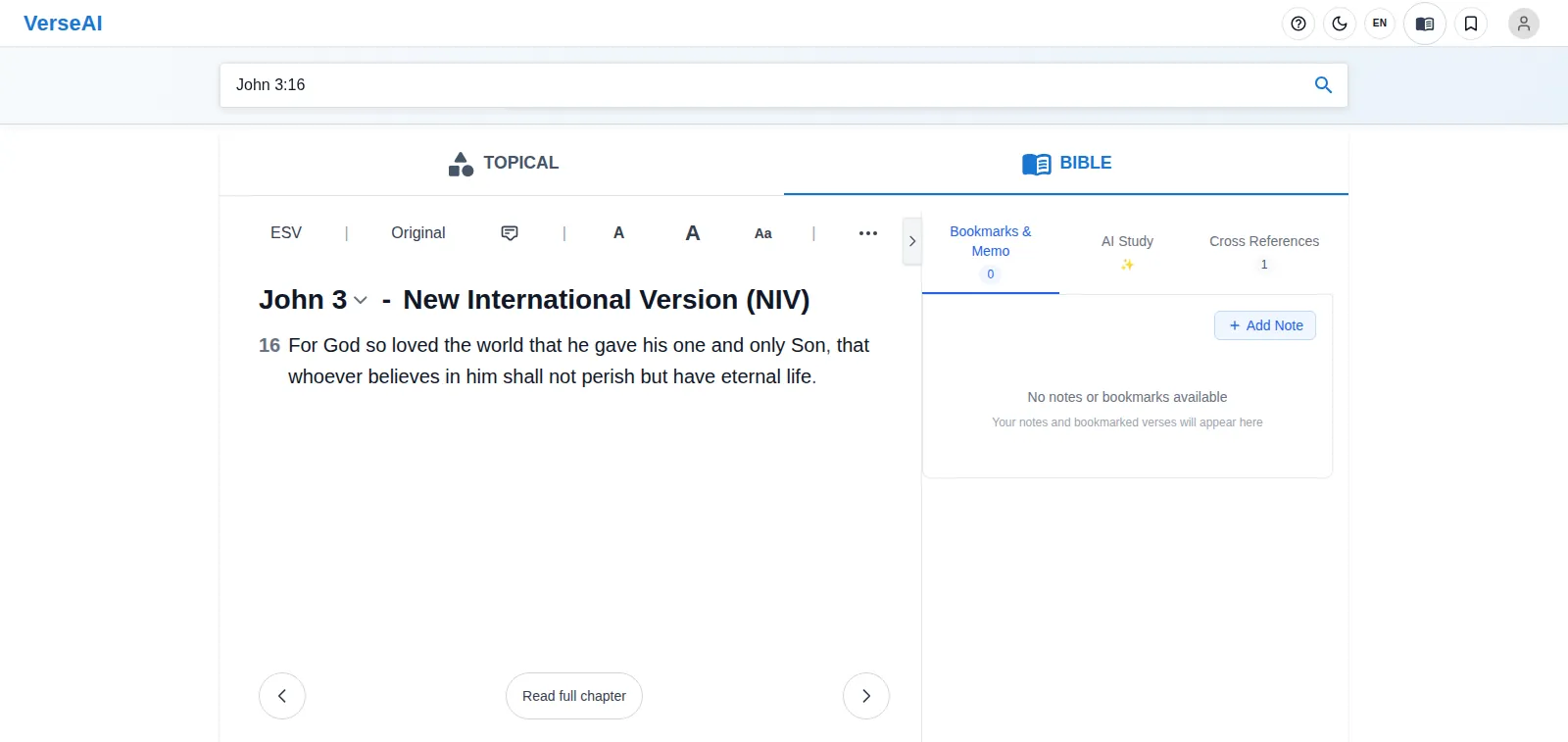
Search results for John 3:16 — Bible tab - Open PPT — tap ⋯ More, then the PPT button in the popover that opens.
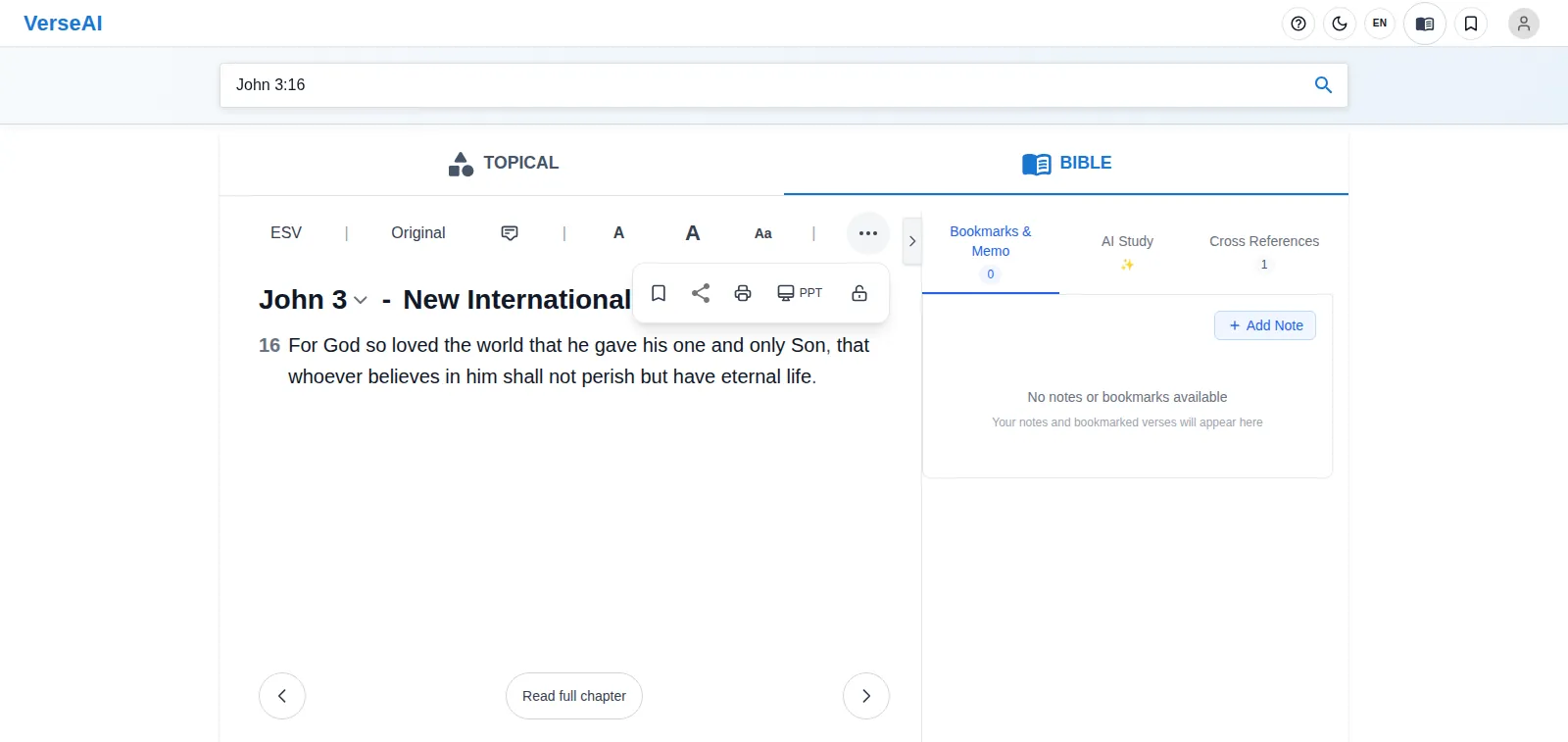
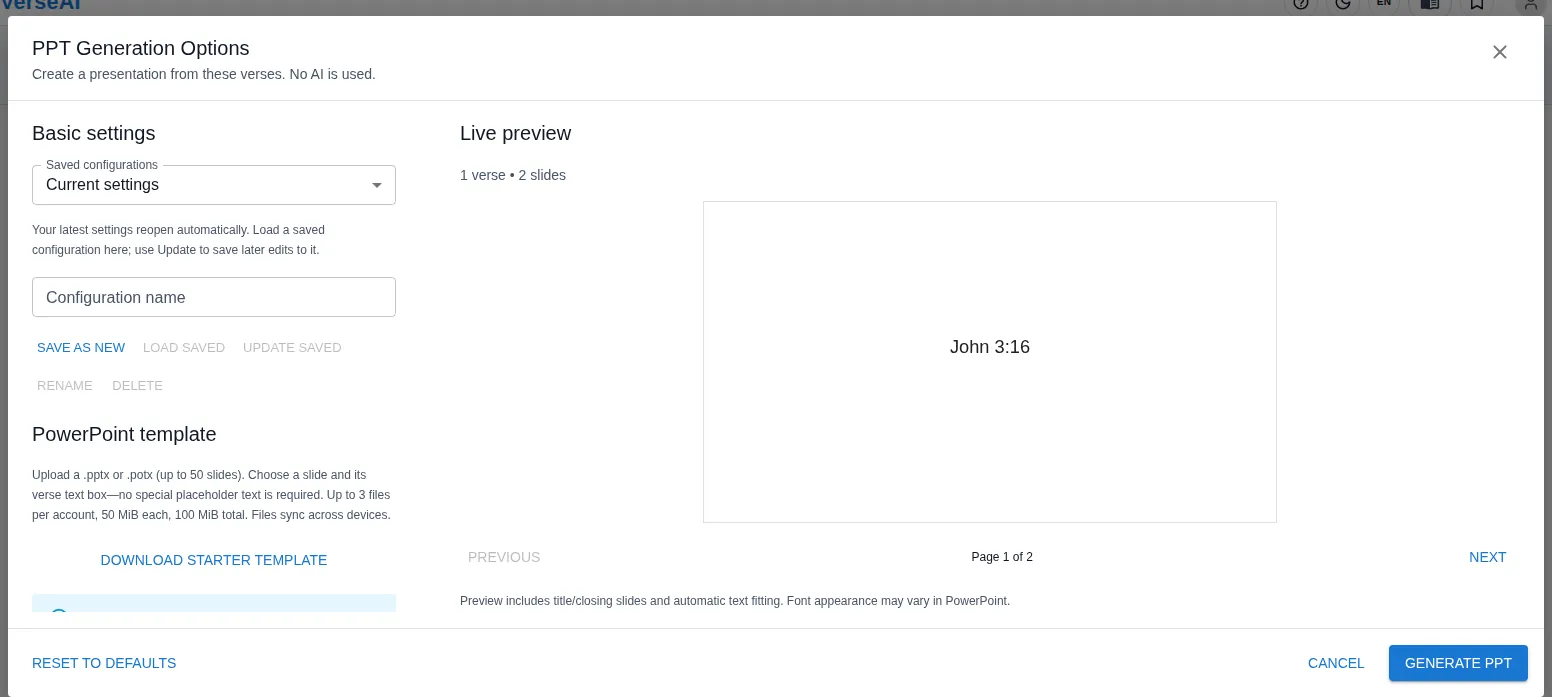
The ⋯ More popover — the PPT button - Set the options — check the settings below in the options dialog. The preview on the right shows the result as you go.
The PowerPoint options dialog - Generate — press GENERATE PPT and the .pptx downloads.
The dialog at a glance
- Left column — the settings run top to bottom: saved configurations → template → style tabs → file name → background → slide switches → advanced options.
- Preview on the right — shows the slides as they will come out. Every option change is reflected immediately. See "Preview" below for how to use it.
- Bottom buttons — RESET TO DEFAULTS · CANCEL · GENERATE PPT.
- Your last settings return — reopening the dialog restores the option state you last used.
Saved configurations
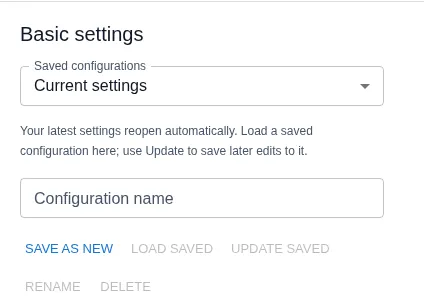
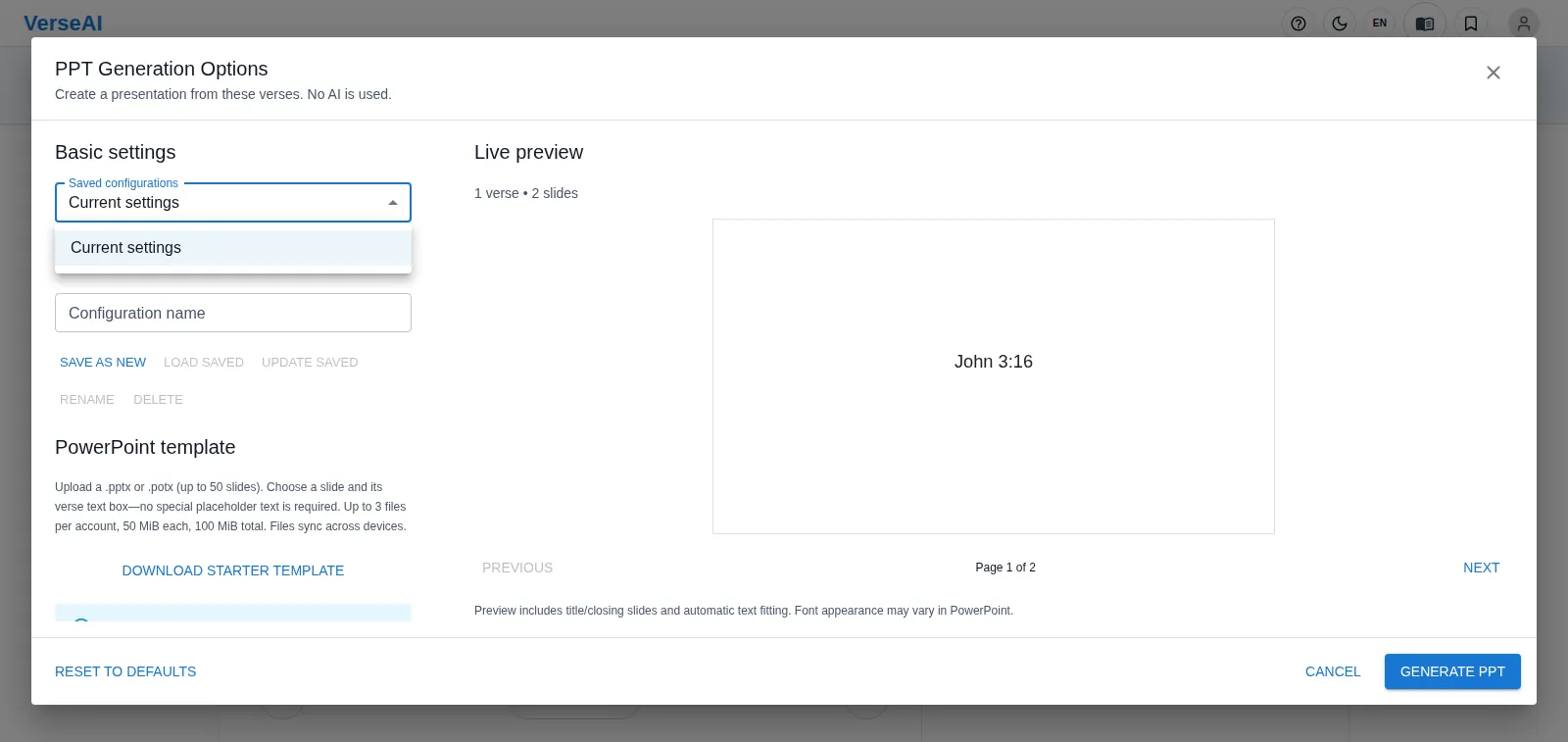
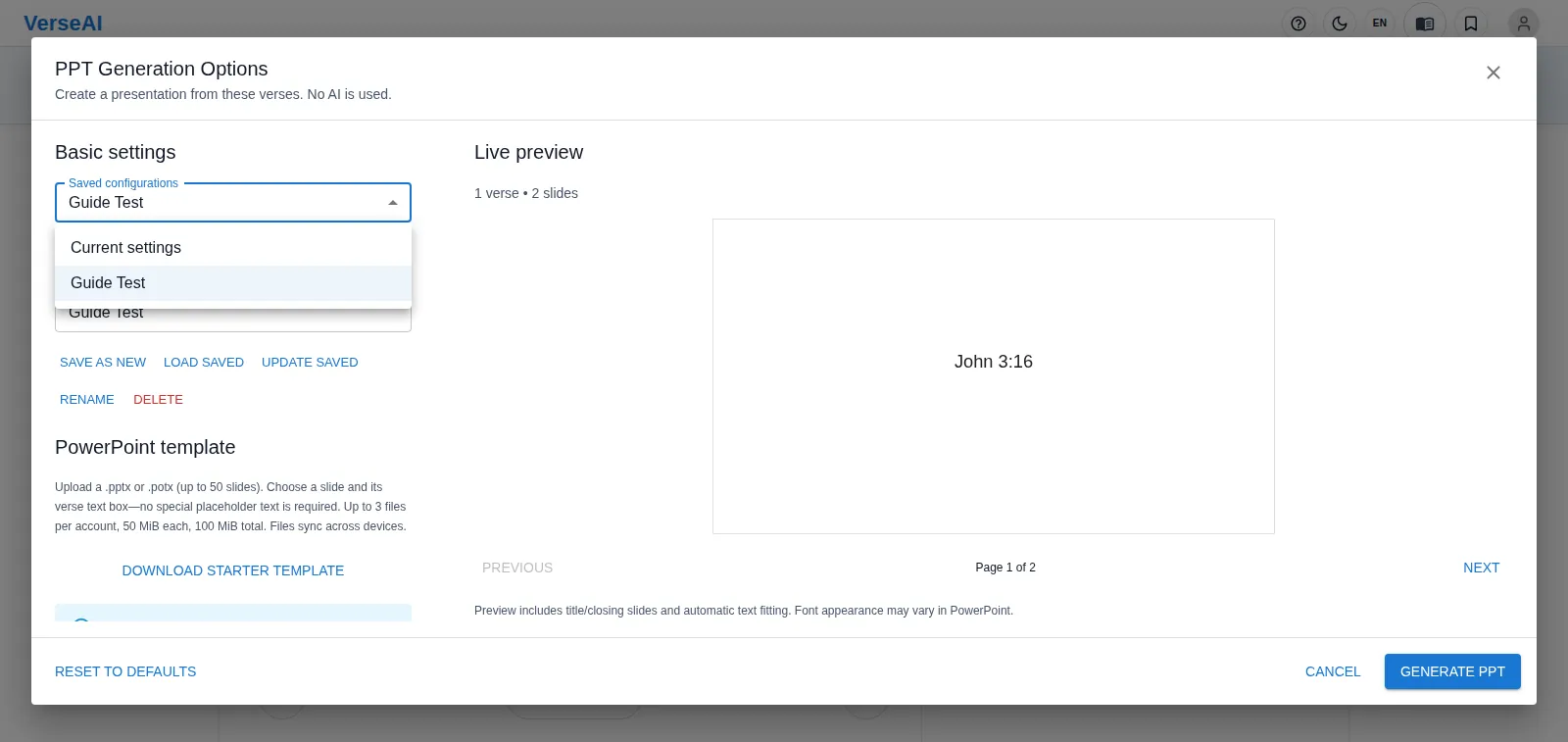
- Saved configurations (list) — where you pick a saved configuration. "Current settings" is your live, not-yet-saved state.
- Configuration name — type the name for a new configuration.
- SAVE AS NEW — saves the current options under that name. The new configuration becomes the selected one right away. Saving works without signing in.
- LOAD SAVED — applies the selected configuration to the dialog. It stays disabled until a saved configuration is selected.
- UPDATE SAVED — overwrites the selected configuration with the current options.
- RENAME — renames the selected configuration.
- DELETE — deletes the selected configuration. There is no confirmation prompt — it is deleted immediately, so check before you press it.
- Weekly use — if your sermon slides keep one style, save the configuration once and load it every week.
My templates (your church's design)
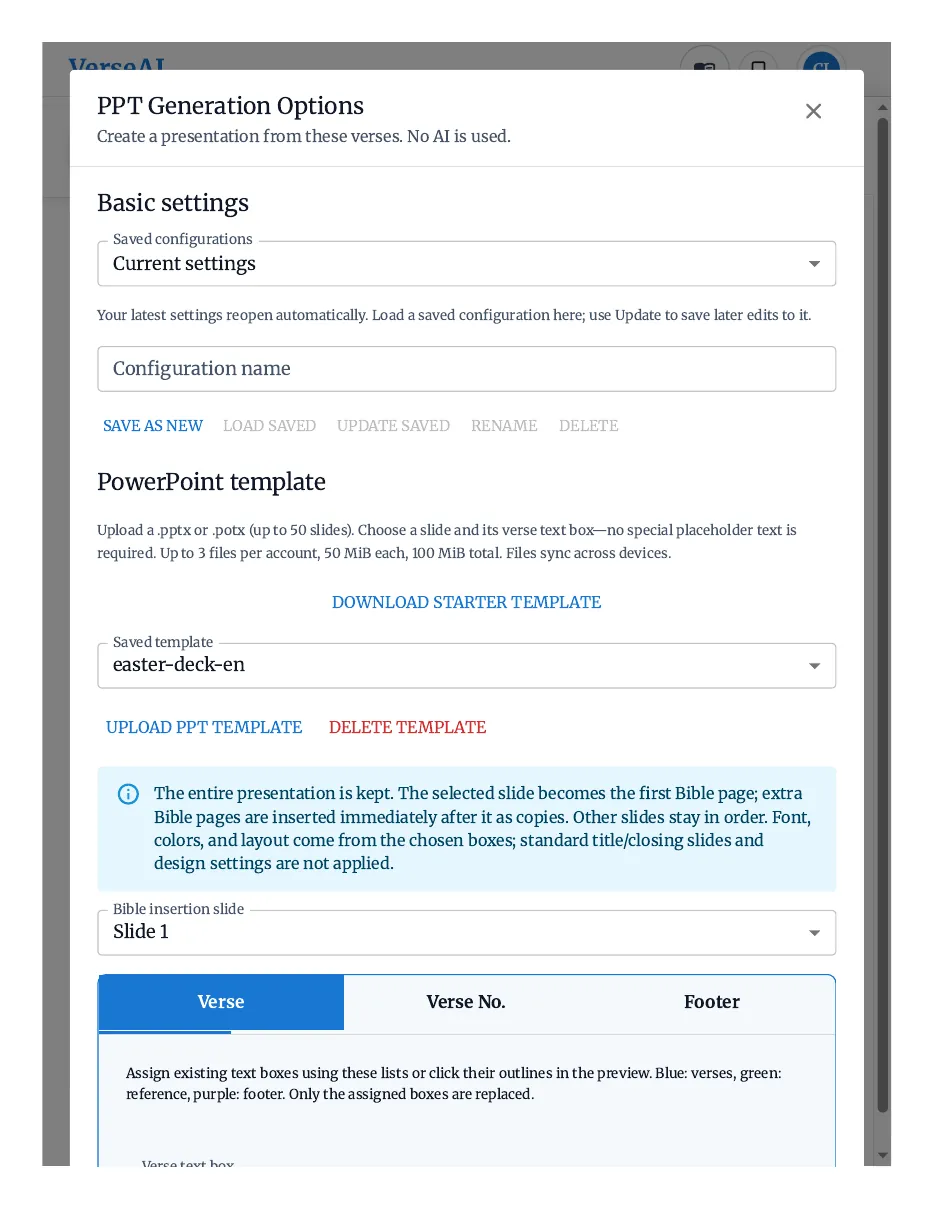
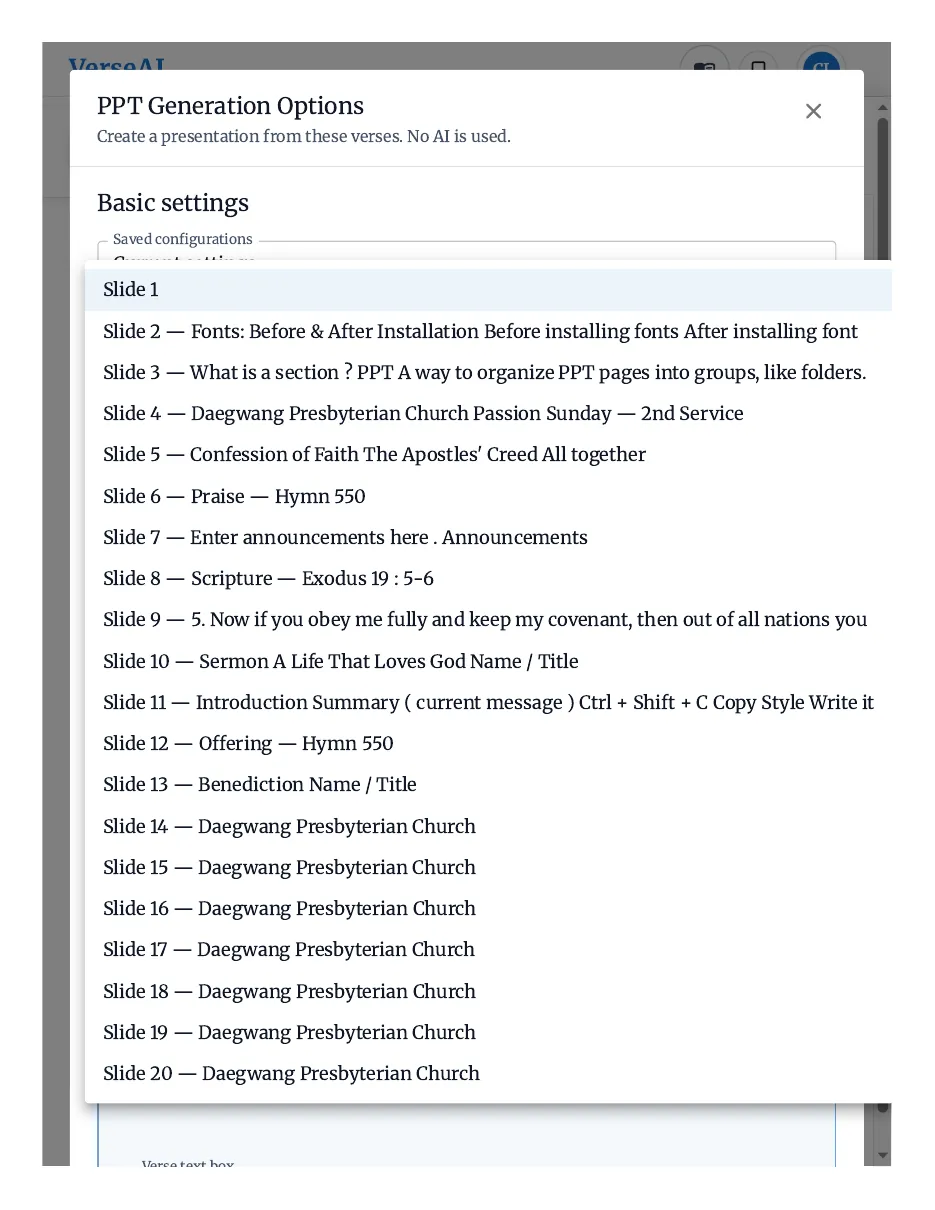
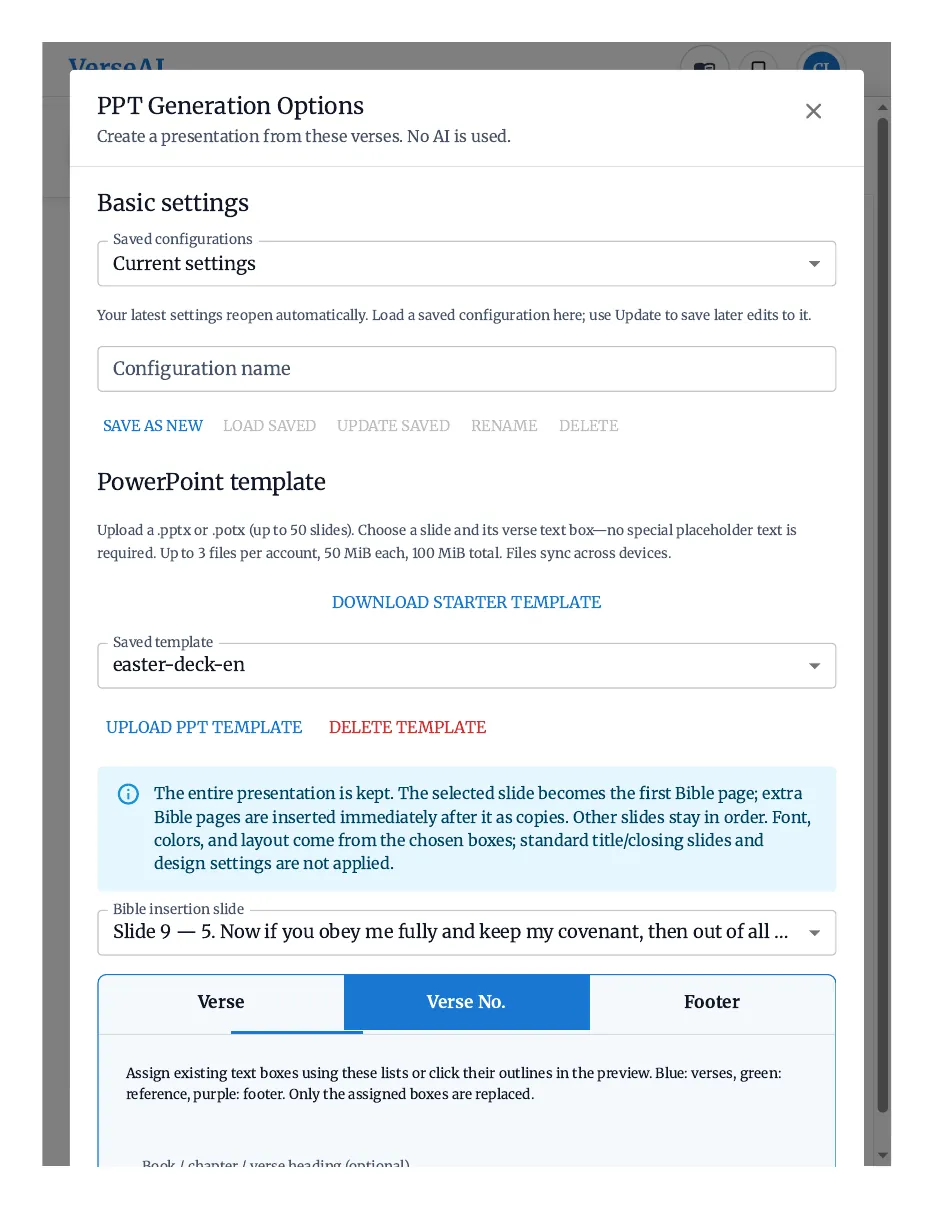
- What it is — upload your church's .pptx/.potx file, and generated decks follow its design.
- Limits — up to 50 slides per file · max 3 templates per account · max 50 MB per file · max 100 MB per person in total.
- Sync — uploaded templates are stored server-side and available on every device signed in to the same account.
- Download starter template — downloads a starter file you can restyle and re-upload as your own template. This button also works for guests.
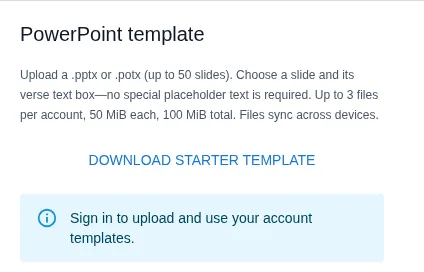
- Sign-in required — uploading and using templates is for signed-in accounts only. As a guest, this section shows only the sign-in notice.
- Upload (signed in) — after signing in, upload a .pptx or .potx file in the template section.
- Pick the slide and verse box (signed in) — in the uploaded file, choose the one slide and the one text box that will receive the verses. No special placeholder text is needed in the file.
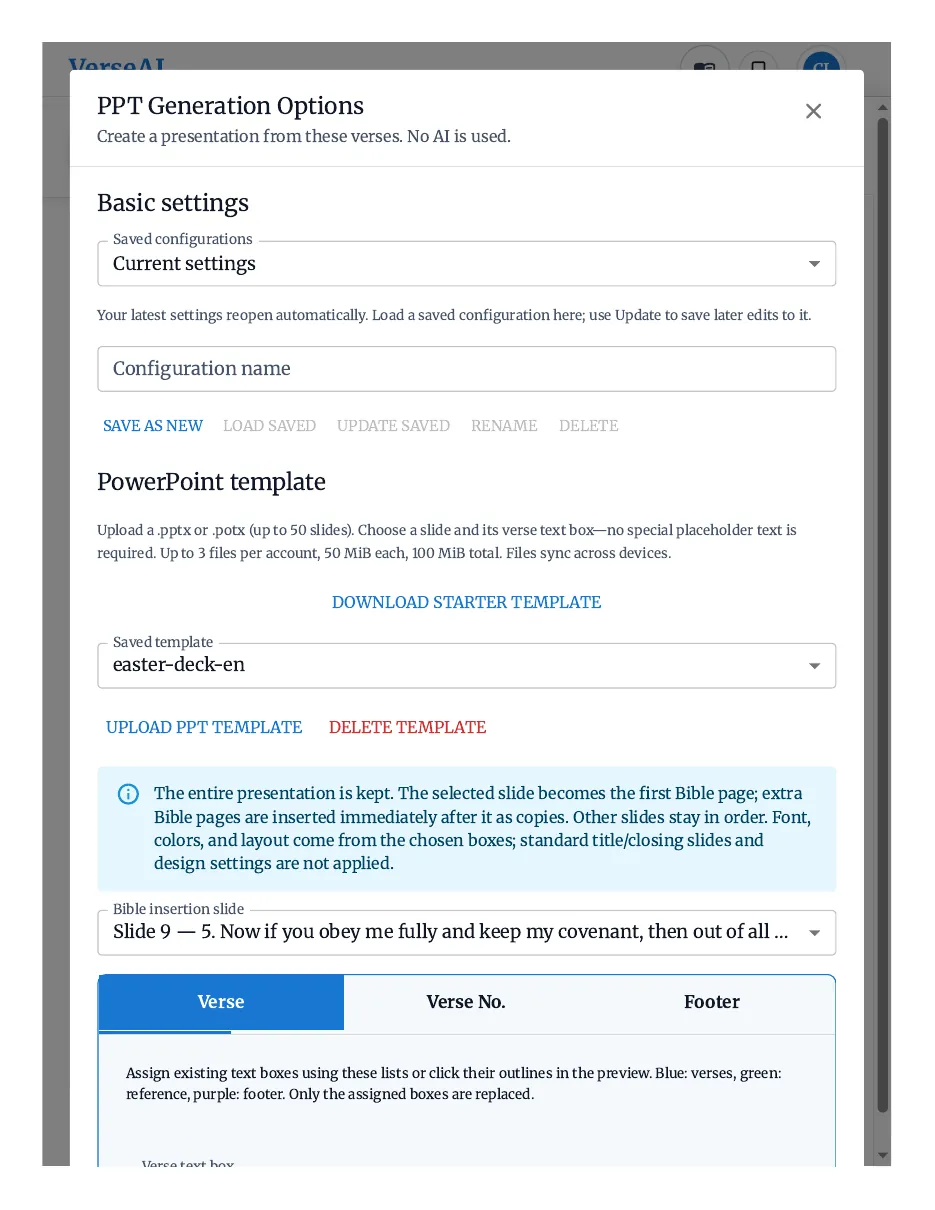
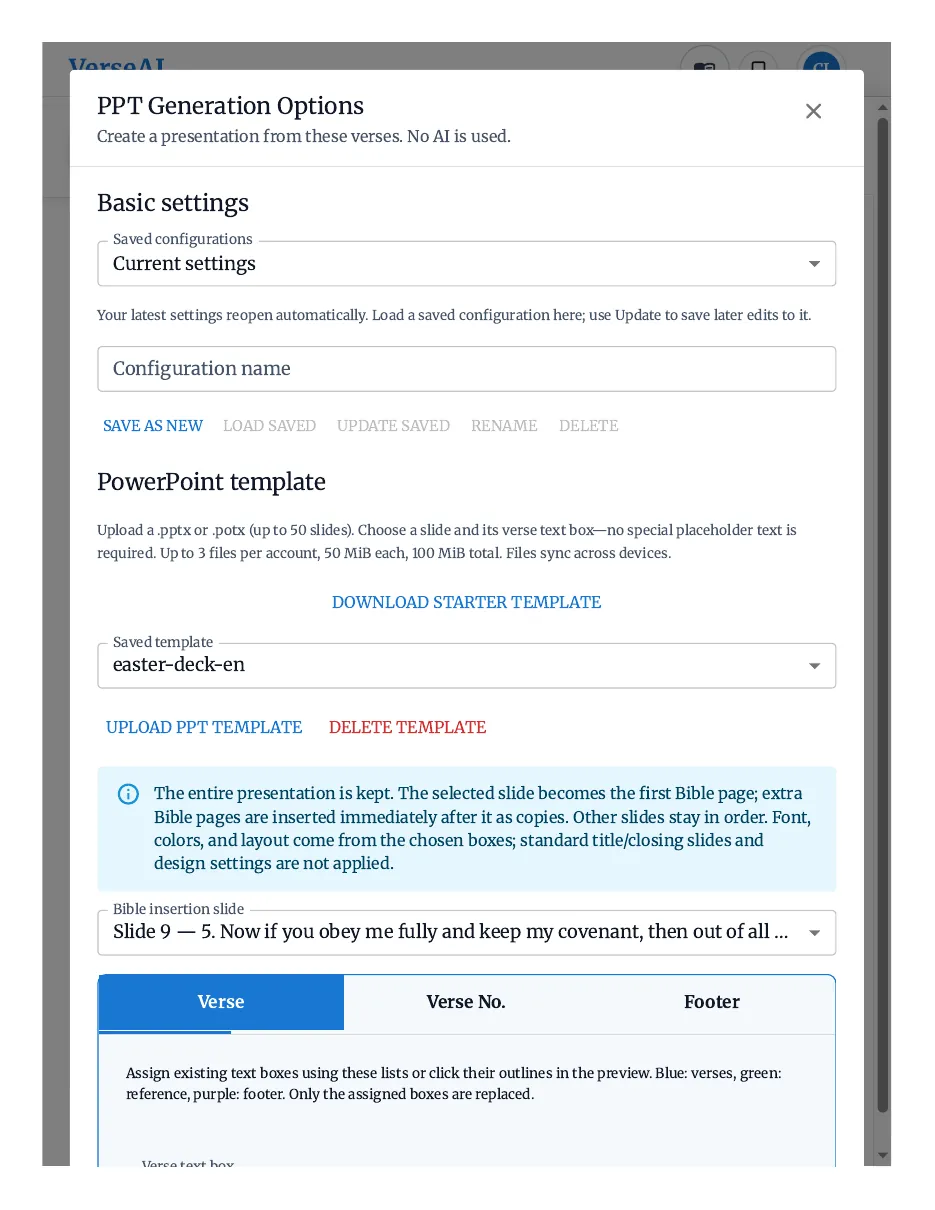
- Once picked — decks you generate follow the chosen slide's design instead of the built-in look.
- Delete — removes the template from your list.
Style tabs — and the Verse tab
Style tabs
- Three tabs sit above the option list: Verse · Verse No. · Footer.
- A tab chooses which text element the style controls below it apply to. Font, size, colour, and alignment are set separately for each element.
- Note the Verse No. tab — despite its name, it styles the reference heading printed on the slide (e.g. "John 3:16"), not the verse numbers.
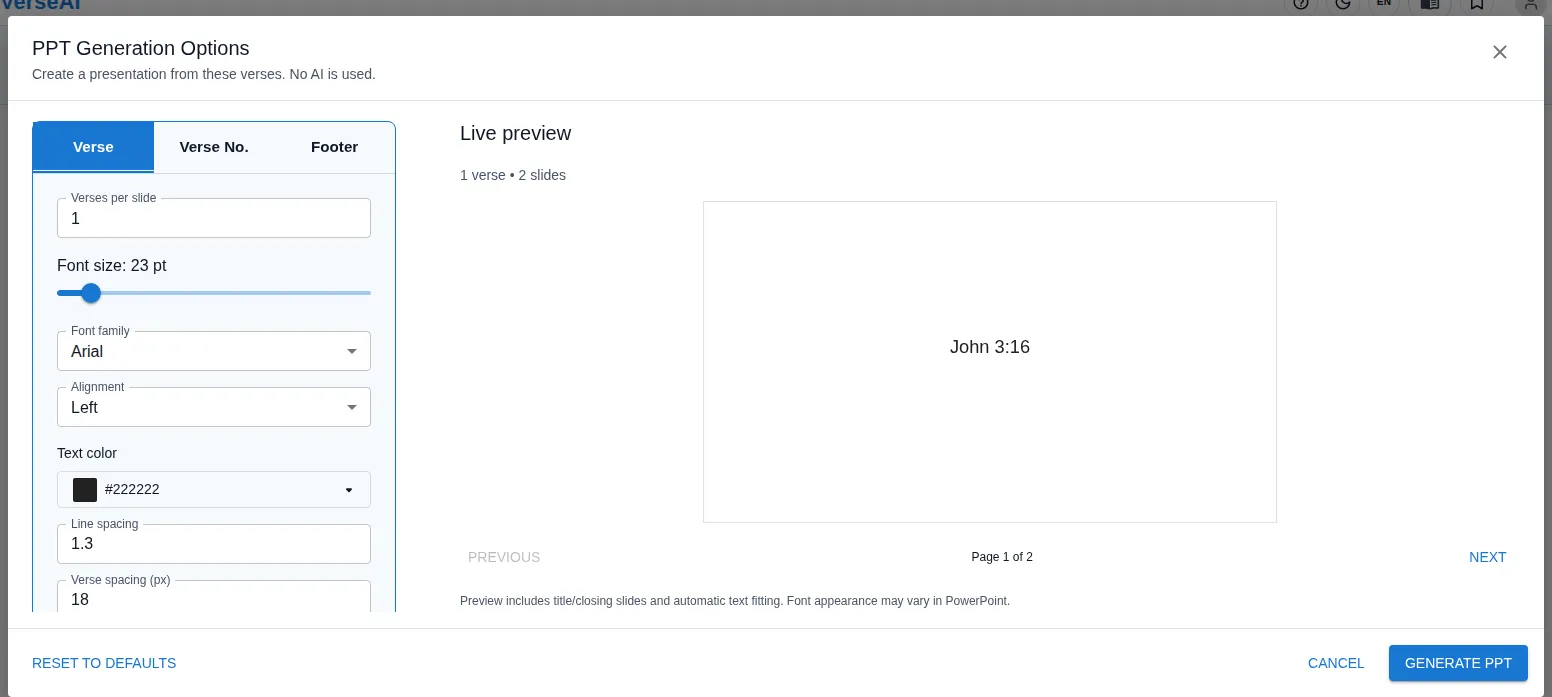
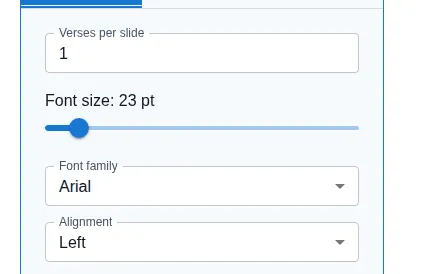
Verse tab
- Verses per slide — how many verses are grouped onto one slide. Type a number; the preview's slide count updates at once. Default 1. With the second translation on, the maximum is 2.
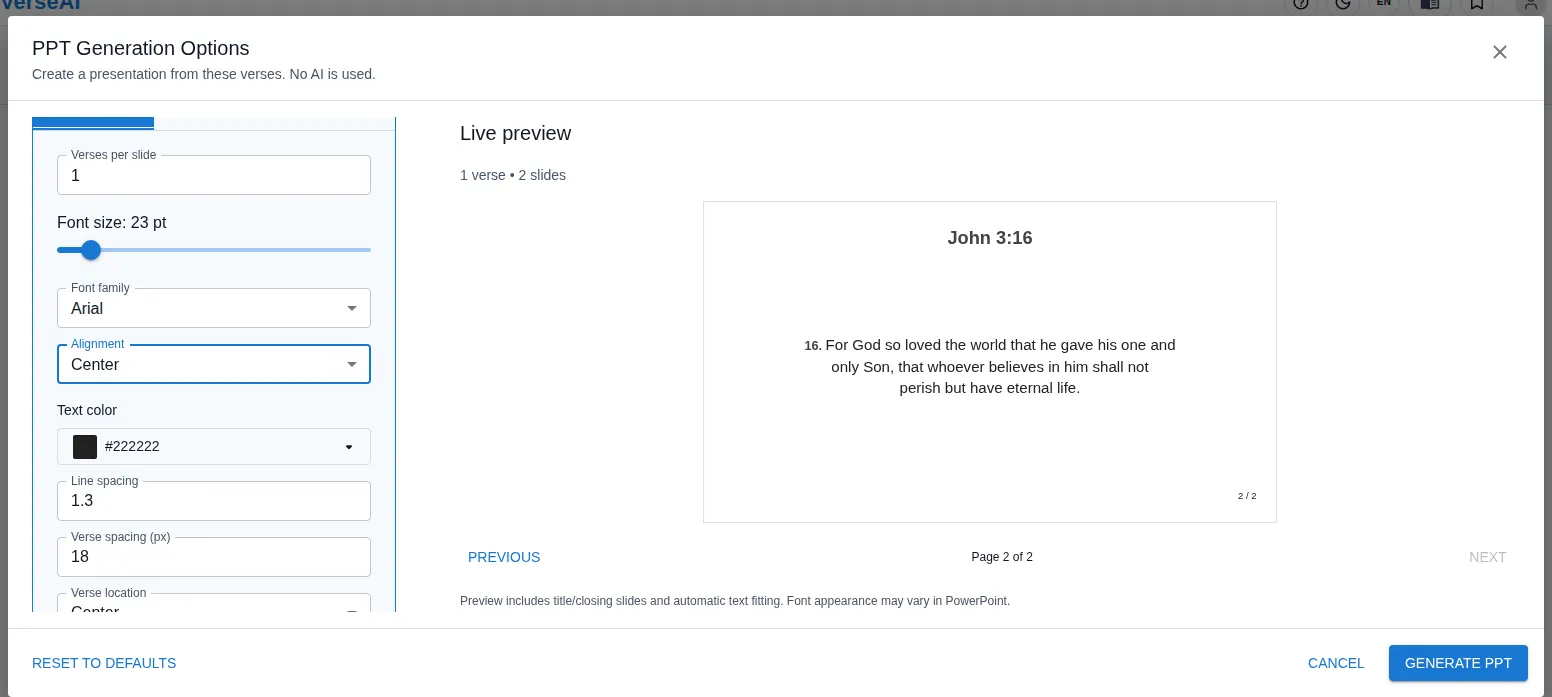
- Font size — the body text size, set with the slider (pt). Default 23 pt.
- Automatic text fitting — long text is shrunk automatically so it fits the slide.
- Font — the body font. 14 choices: Arial, Calibri, Times New Roman, Verdana, Tahoma, Malgun Gothic, Gulim, Dotum, Batang, Gungsuh, Nanum Gothic, Nanum Myeongjo, SBL Greek, SBL Hebrew. The default follows the UI language — Korean UI: Malgun Gothic; English/Spanish UI: Arial.
- Font caution — the deck stores the font name. If the presenting computer doesn't have that font, PowerPoint substitutes another one.
- Alignment — horizontal alignment of the verse body: Left · Center · Right. Default Left. The reference heading follows the same alignment.
- Text color — the body colour. Click the swatch to open theme colours, standard colours, and a custom hex field. Default #222222.
- Line spacing — the line-height multiplier of the verse text. Default 1.3.
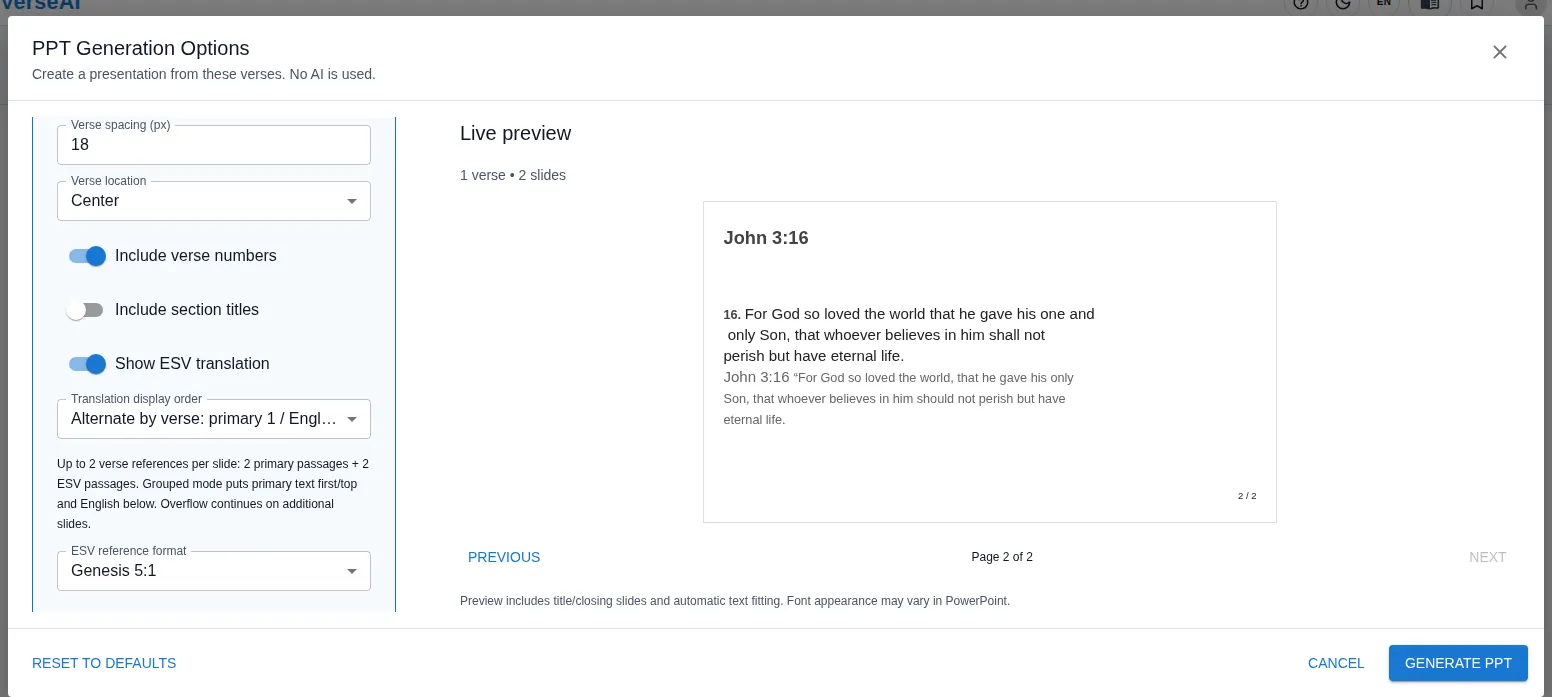
- Verse spacing (px) — the vertical gap between verses that share a slide. Default 18.
- Verse location — vertical placement of the verse block on the slide: Top · Center · Bottom. Default Center.
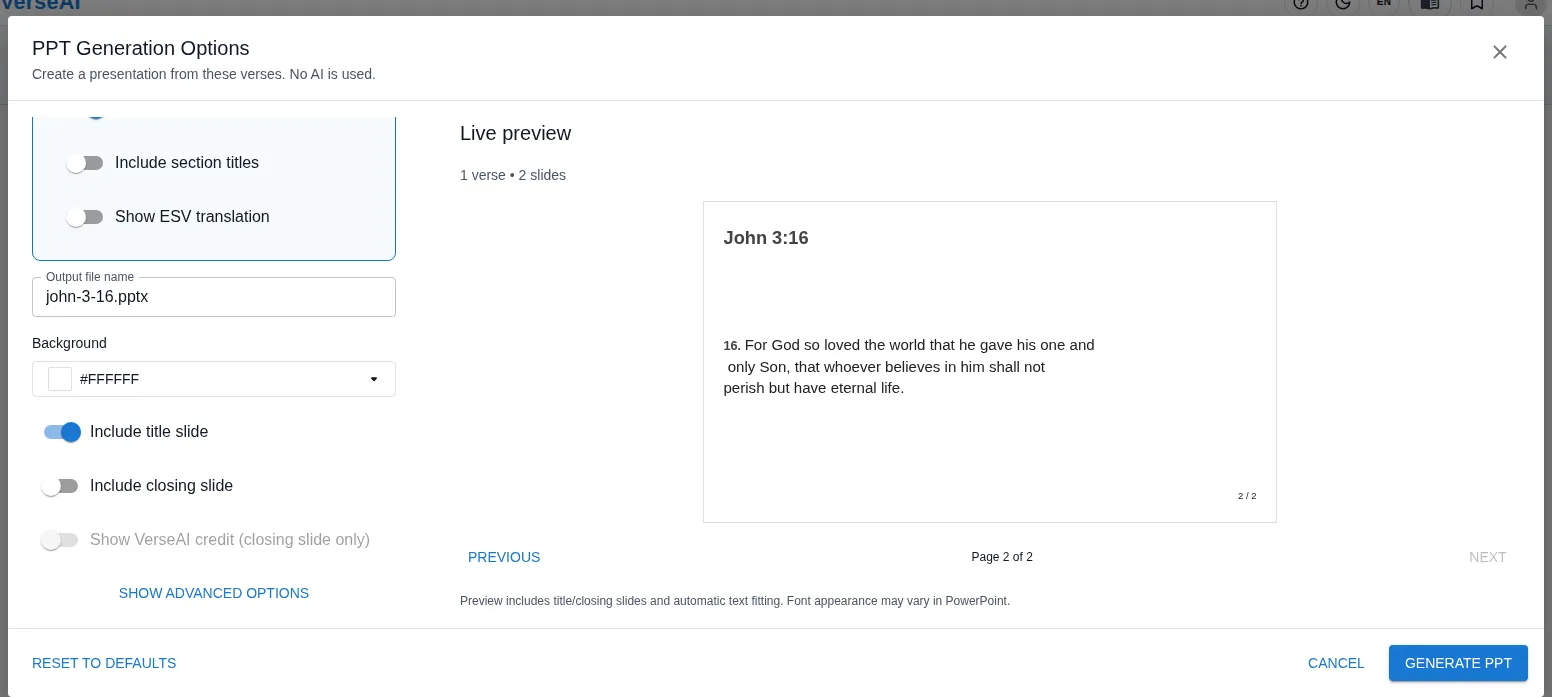
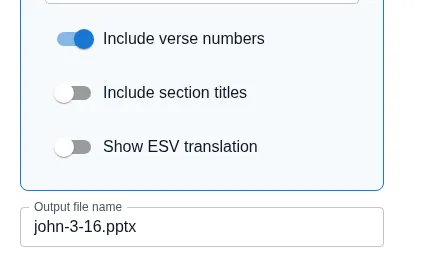
- Include verse numbers — prefixes each verse with its number ("16."). Default ON.
- Include section titles — includes the Bible text's section (pericope) headings. Default OFF.
- Show ESV translation — adds a second translation under each verse, making bilingual slides. (The Korean and Spanish UIs add the NIV instead.) Default OFF. Turning it on reveals the three settings below.
- Translation display order — Alternating ("verse 1 / translation 1 / verse 2 / translation 2") is the default. Grouped shows the primary verses first, then the translations below.
- ESV reference format — how the reference printed with the second translation is written: full "Genesis 5:1" (default) · abbreviated "Gen 5:1" · number only "1" · none (no reference printed).
- Italic ESV text — italicizes the second-translation text. Default OFF.
See it in the preview — change Verses per slide and the slide count and headings change at once.
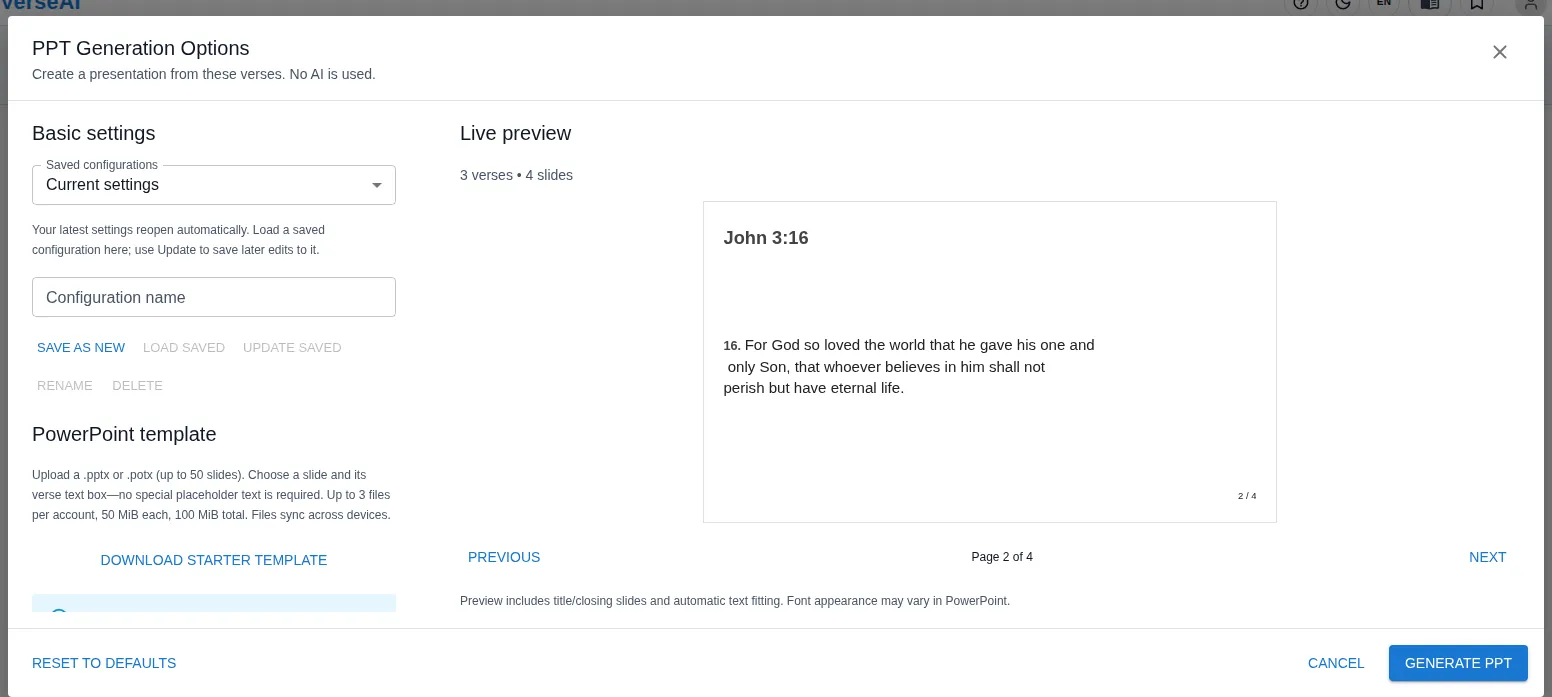
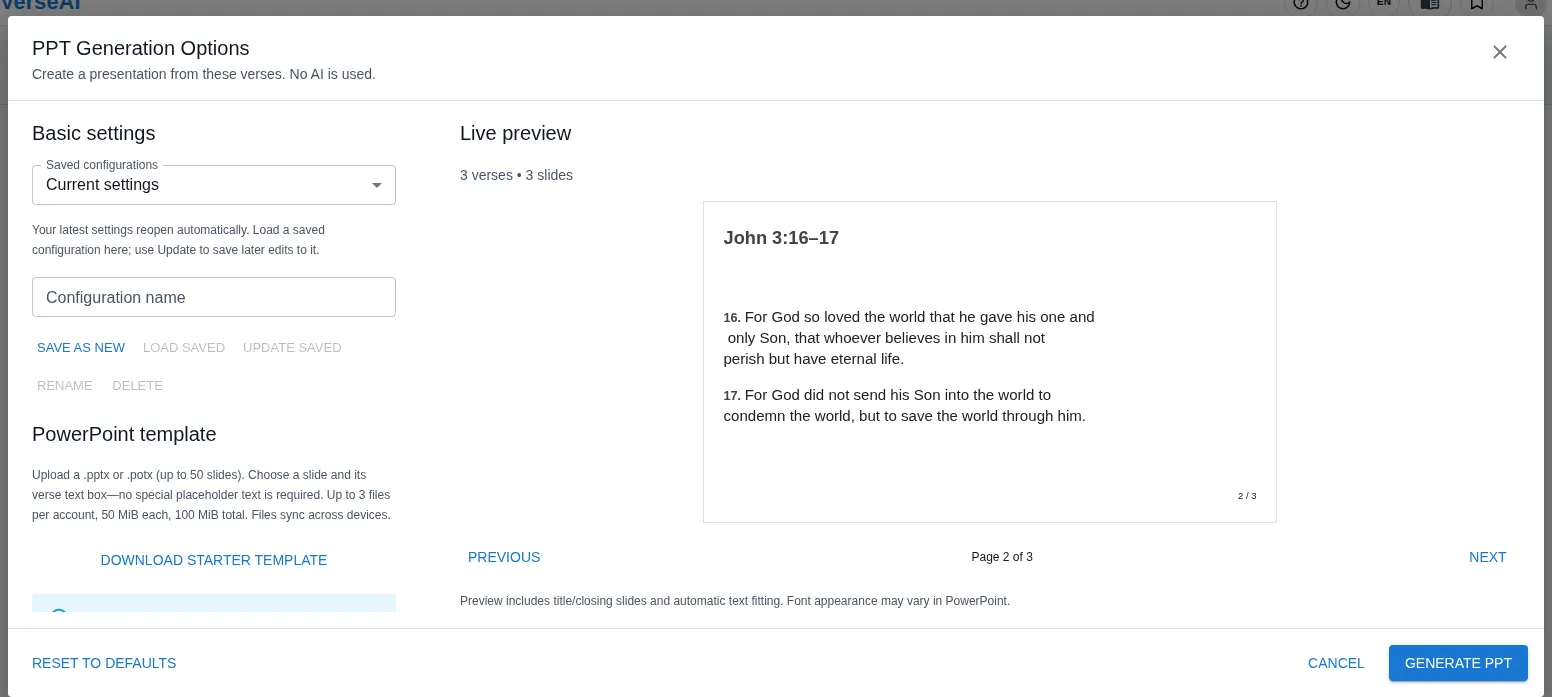
See it in the preview — change the alignment and the body and the reference heading move together.
Verse No. tab (reference heading)
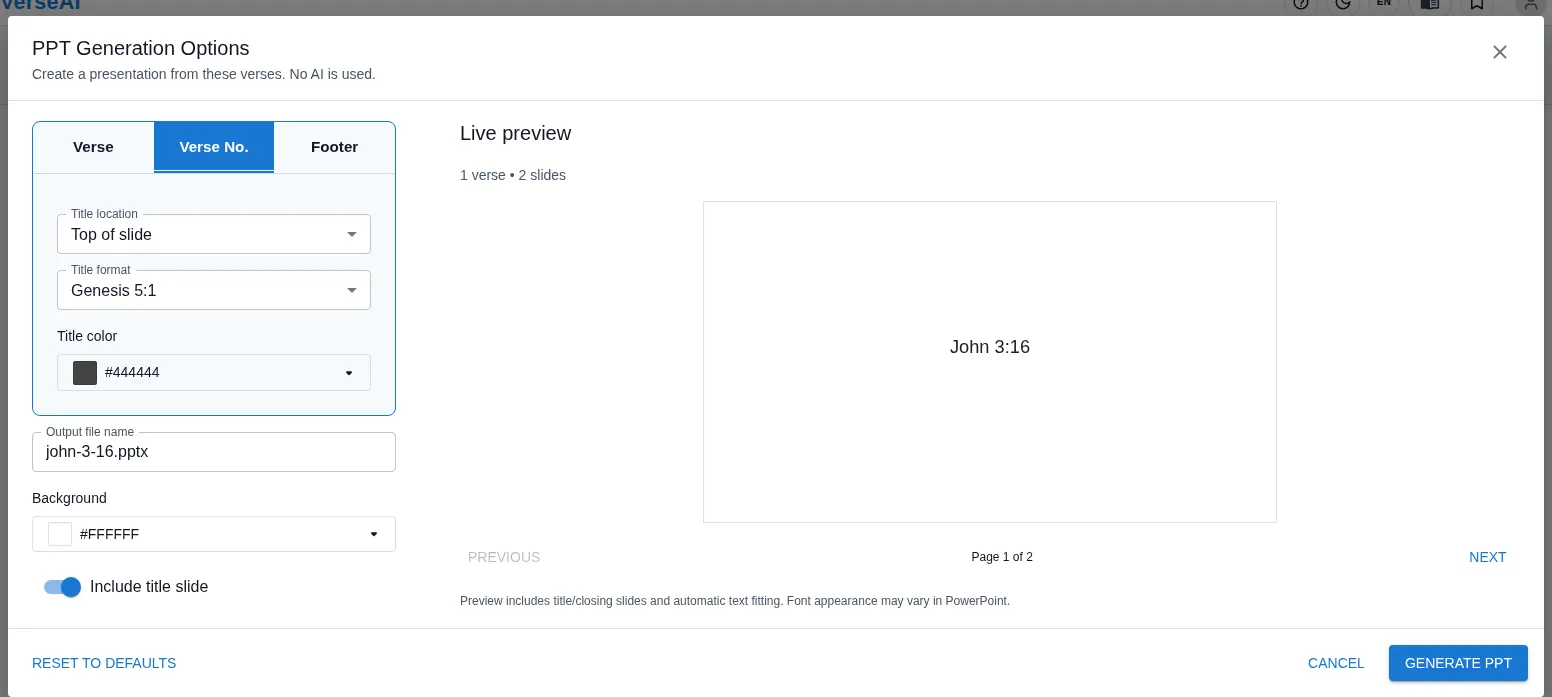
- This tab's settings style the reference heading printed on the slide (e.g. "John 3:16") — not the verse numbers. With several verses, the heading becomes a range ("John 3:16–17").
- Title location — where the heading sits: none · top of slide · at the start of each verse (inline). Default: top of slide.
- Title format — how the reference is written. The select shows sample references instead of abstract names: full "Genesis 5:1" (default) · abbreviated "Gen 5:1" · number only "1".
- Title color — the heading colour. Default #444444.
Footer tab
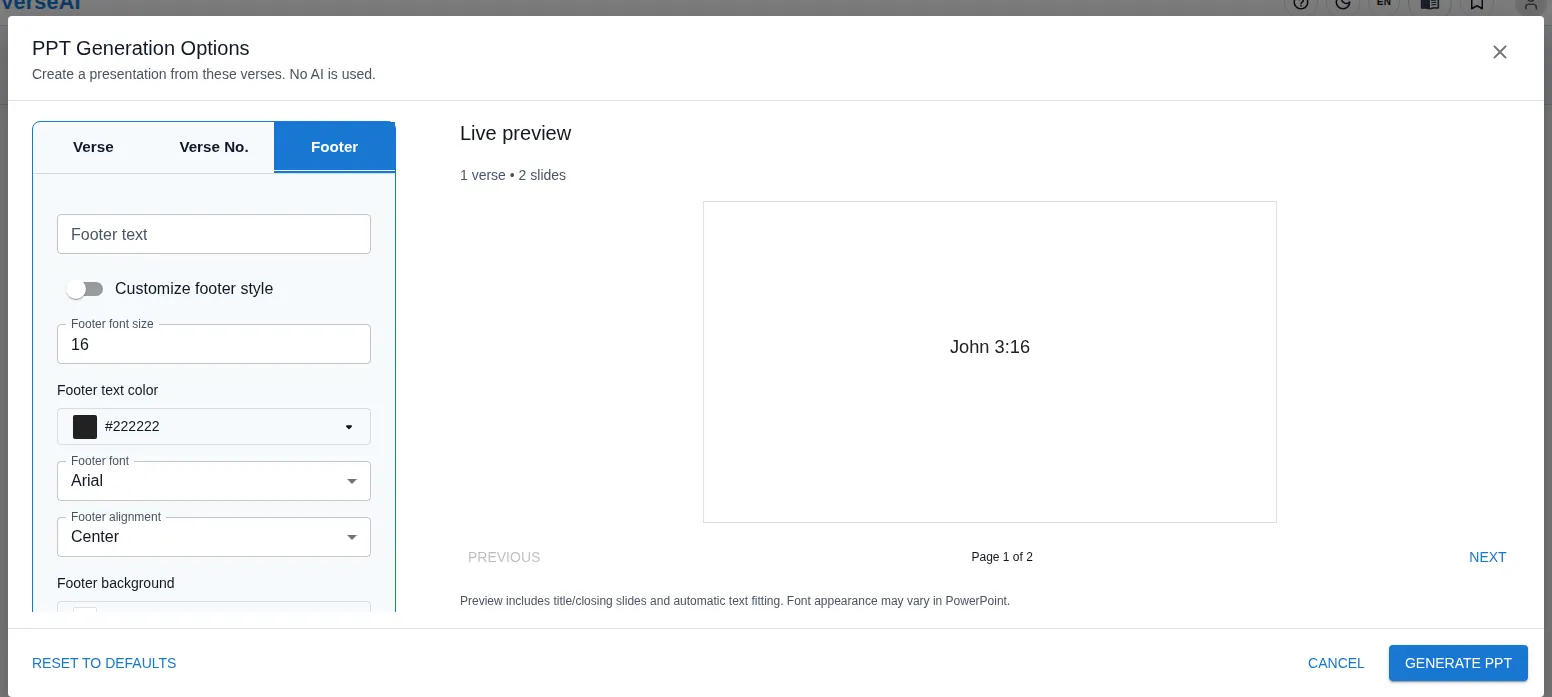
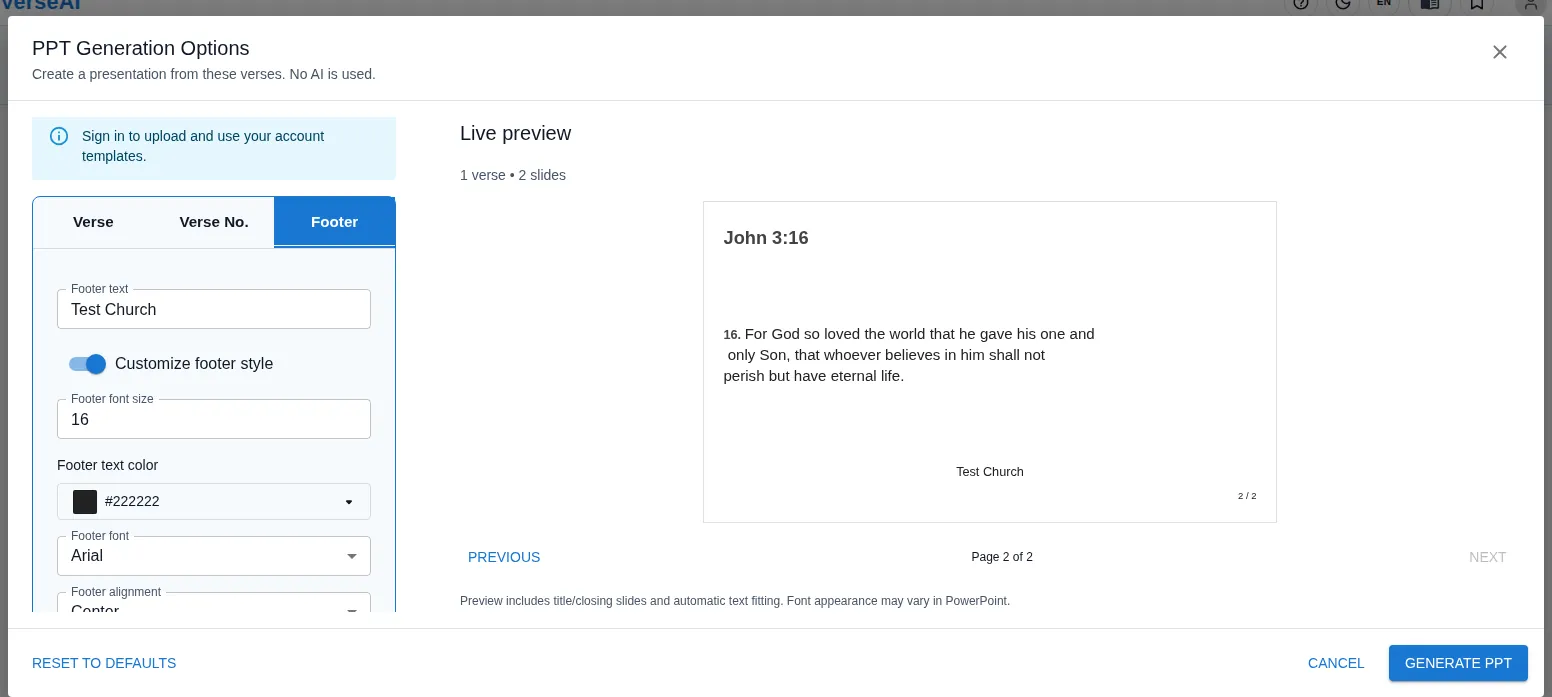
- The footer is the line at the bottom of verse slides. In the generated file it also carries the page number (e.g. "2 / 3").
- Footer text — your own line (church name, service name, date…). Whatever you type appears in the verse-slide footer — whether or not the style switch below is on. Default: empty.
- Customize footer style — the master switch for the style settings below. Off means the footer uses the default styling. Default OFF.
- Footer font size — default 16.
- Footer text color — default #222222.
- Footer font — the same 14 fonts as the body. Default: the UI locale's default font.
- Footer alignment — Left · Center · Right. Default Center.
- Footer background — a colour, or Transparent (no fill). Default #FFFFFF.
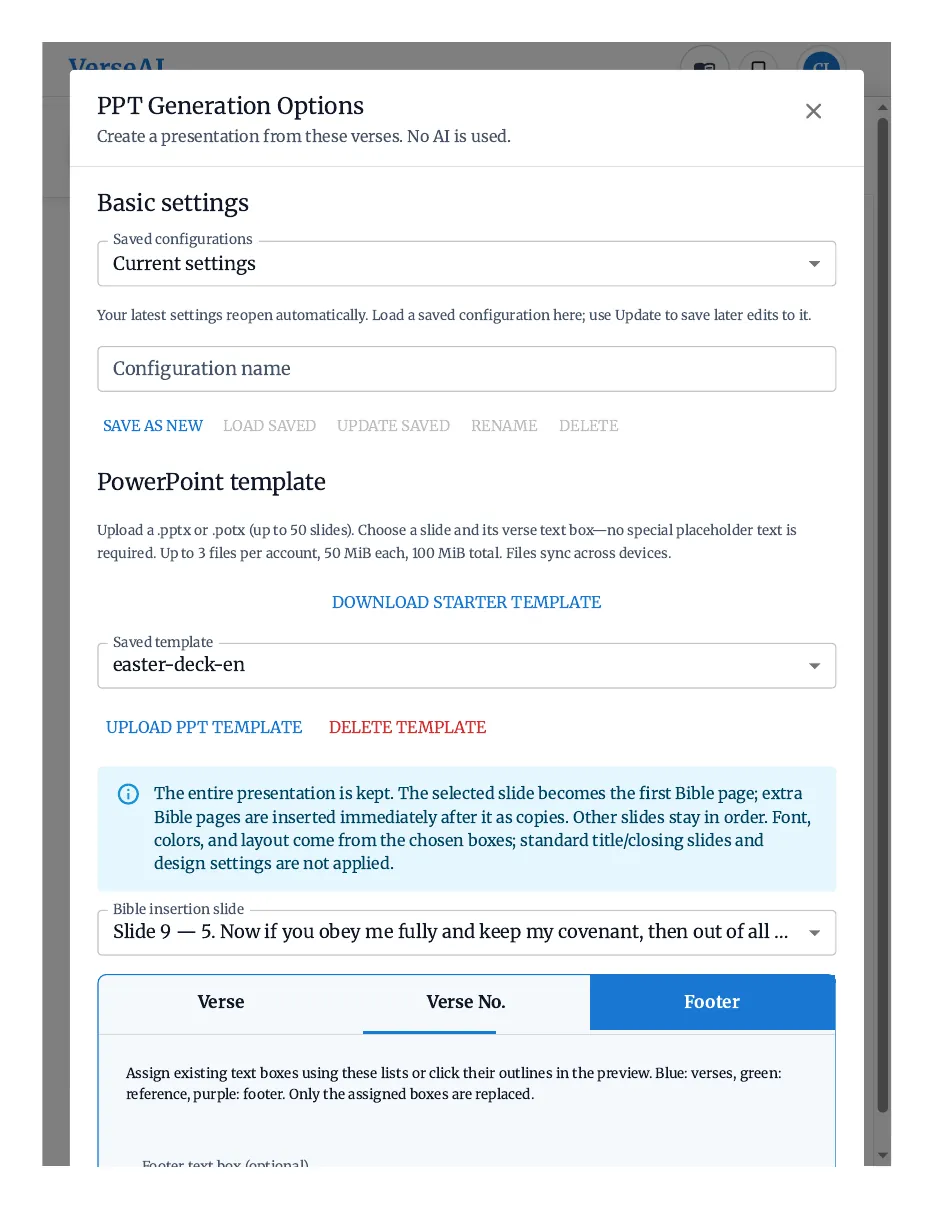
See it in the preview — type footer text and it appears at the bottom of the verse slide right away.
File name · background · slide switches
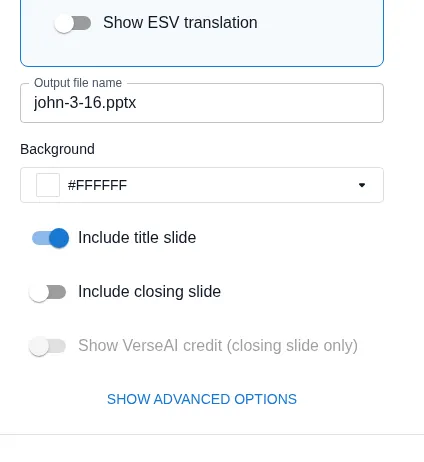
- Output file name — the name of the .pptx that will download. It is prefilled from the passage, and it is an editable field — rename it before generating if you like. Example: john-3-16.pptx.
- Background — the slide background colour. Default #FFFFFF. When a template or a custom image supplies the design, that design wins.
- Include title slide — adds a cover slide showing the passage reference. Default ON.
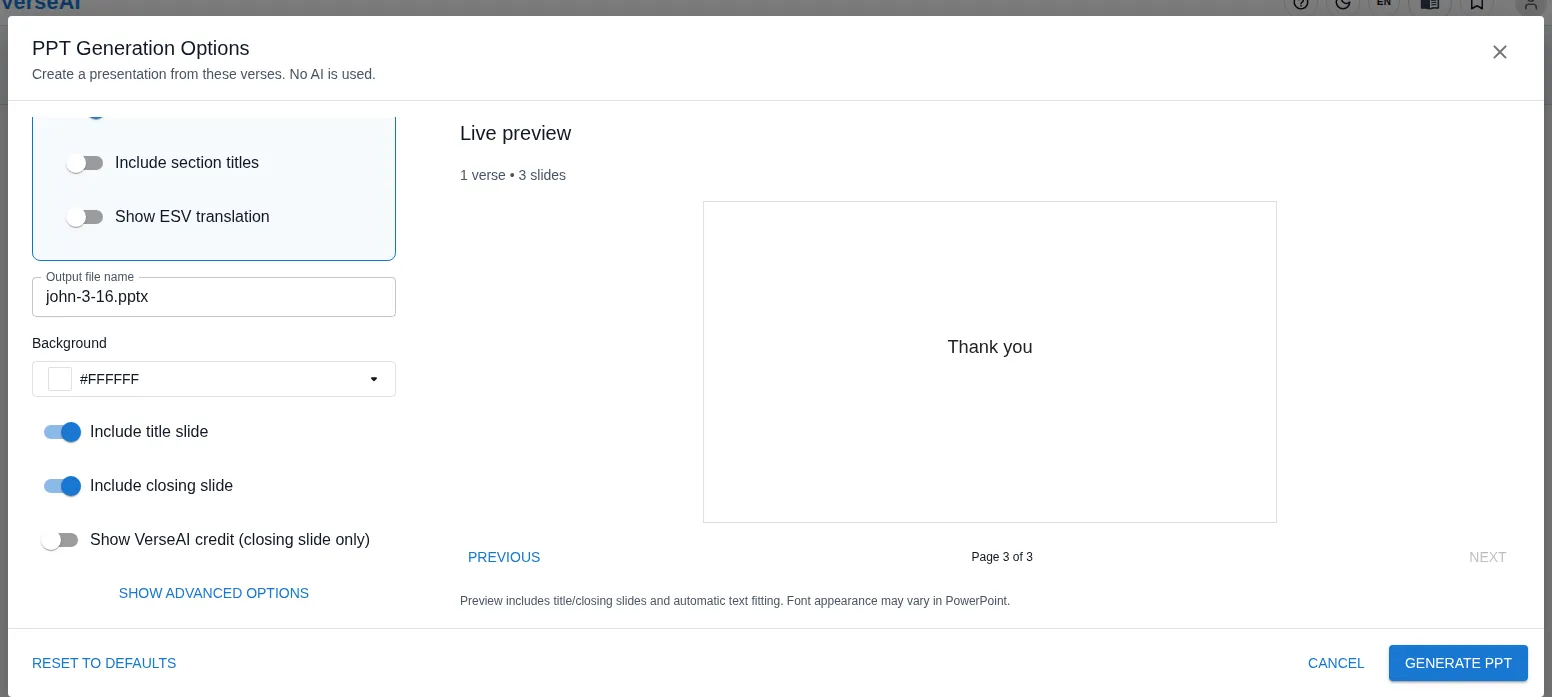
- Include closing slide — adds a final slide with a thank-you message ("감사합니다" in the Korean UI). Default OFF.
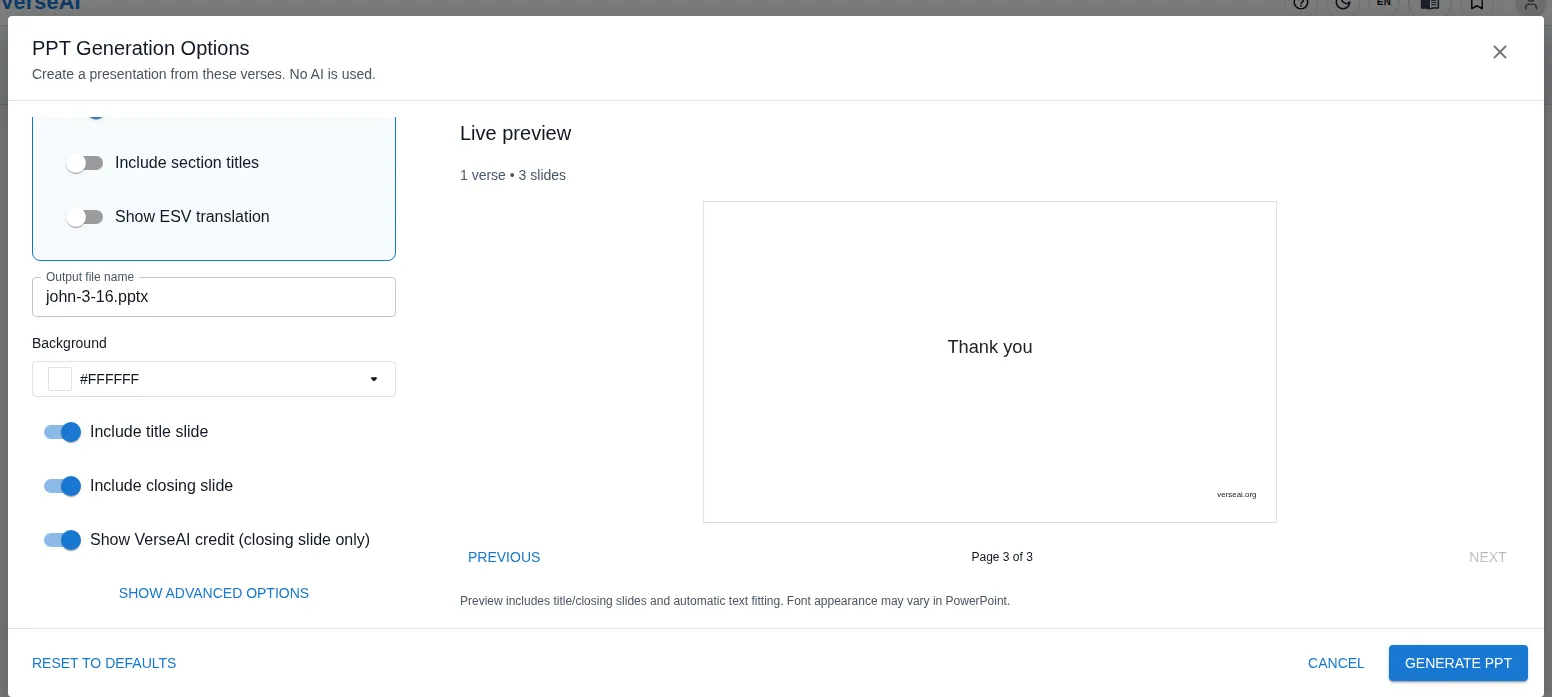
- Show VerseAI credit (closing slide only) — adds a "verseai.org" line under the closing slide's message. Default OFF — and the switch stays disabled until the closing slide is on.
See it in the preview — toggle the title slide and the total count and the first page change.
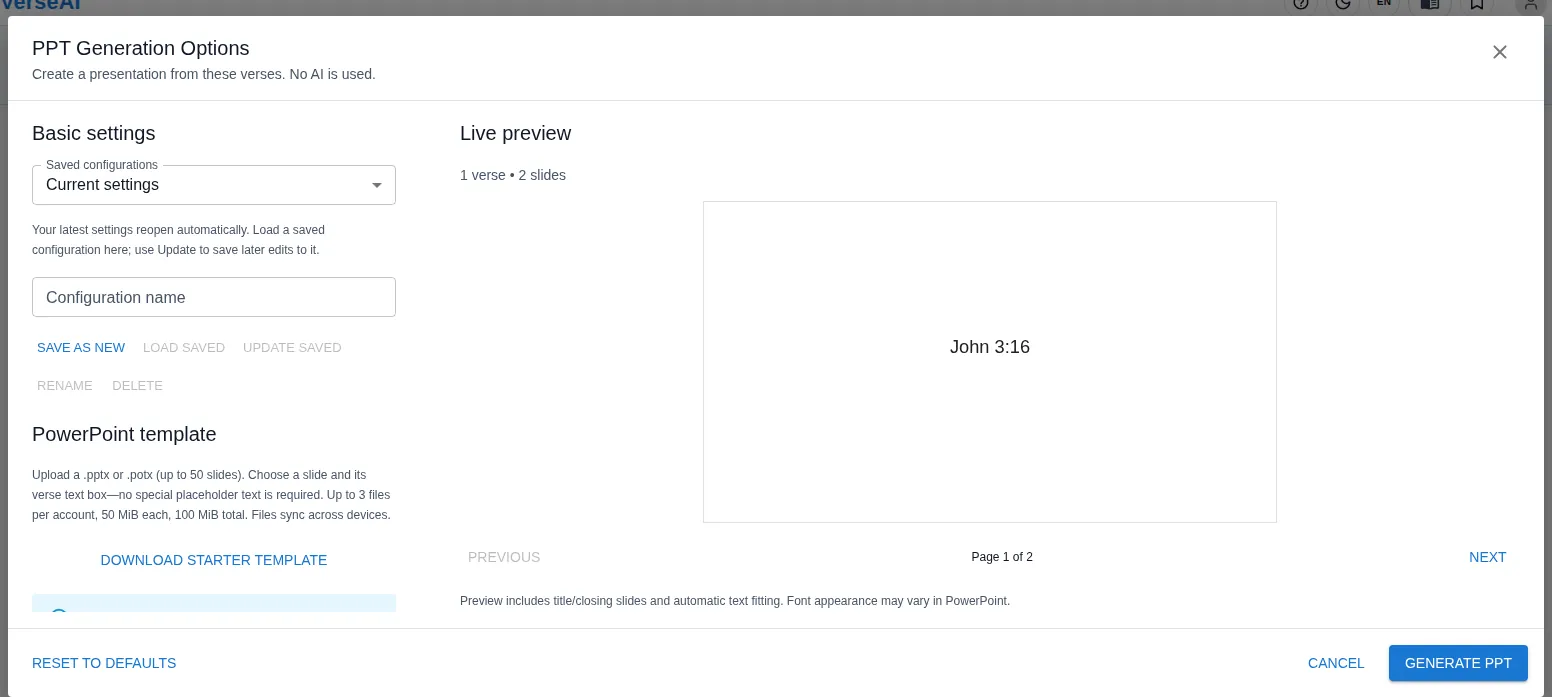
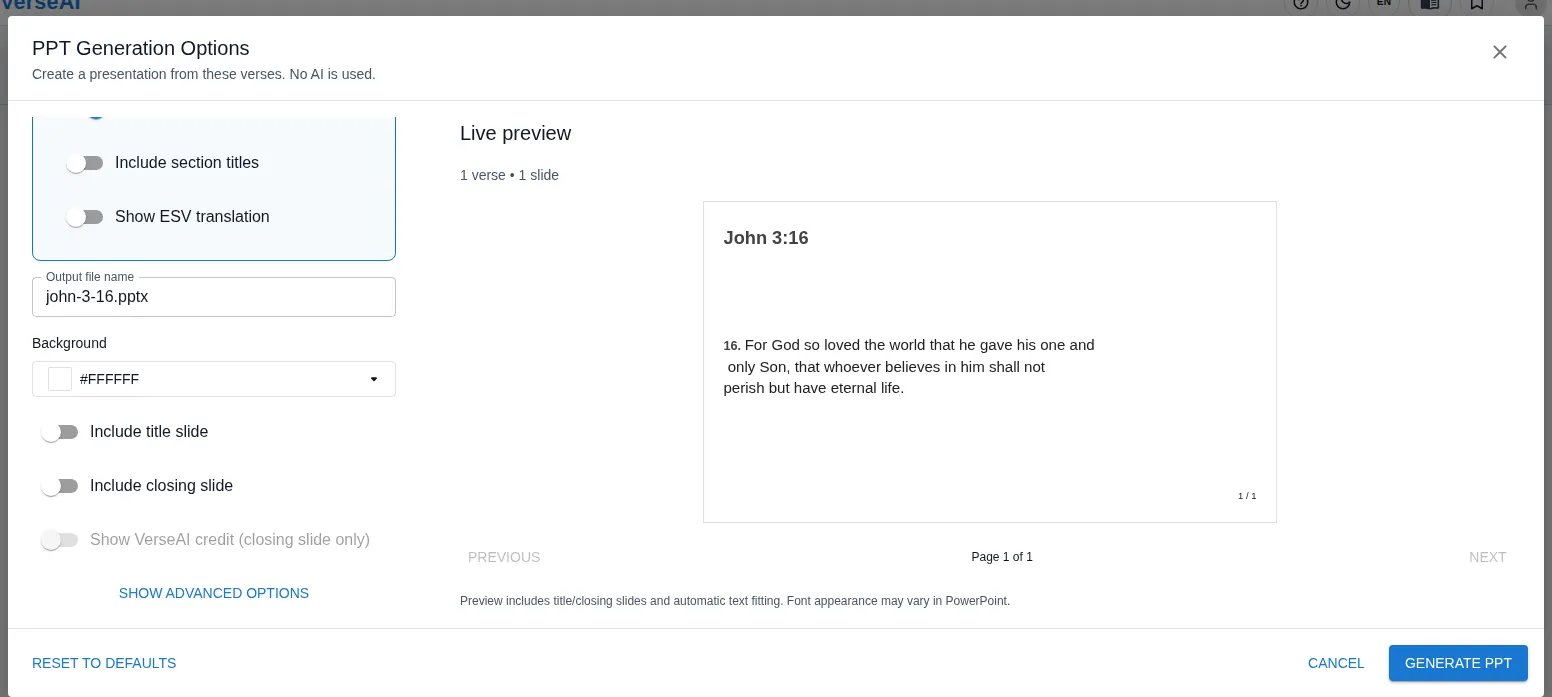
See it in the preview — turn the closing slide on and it appears as the last page; turn the credit on and verseai.org appears under the message.
Advanced options
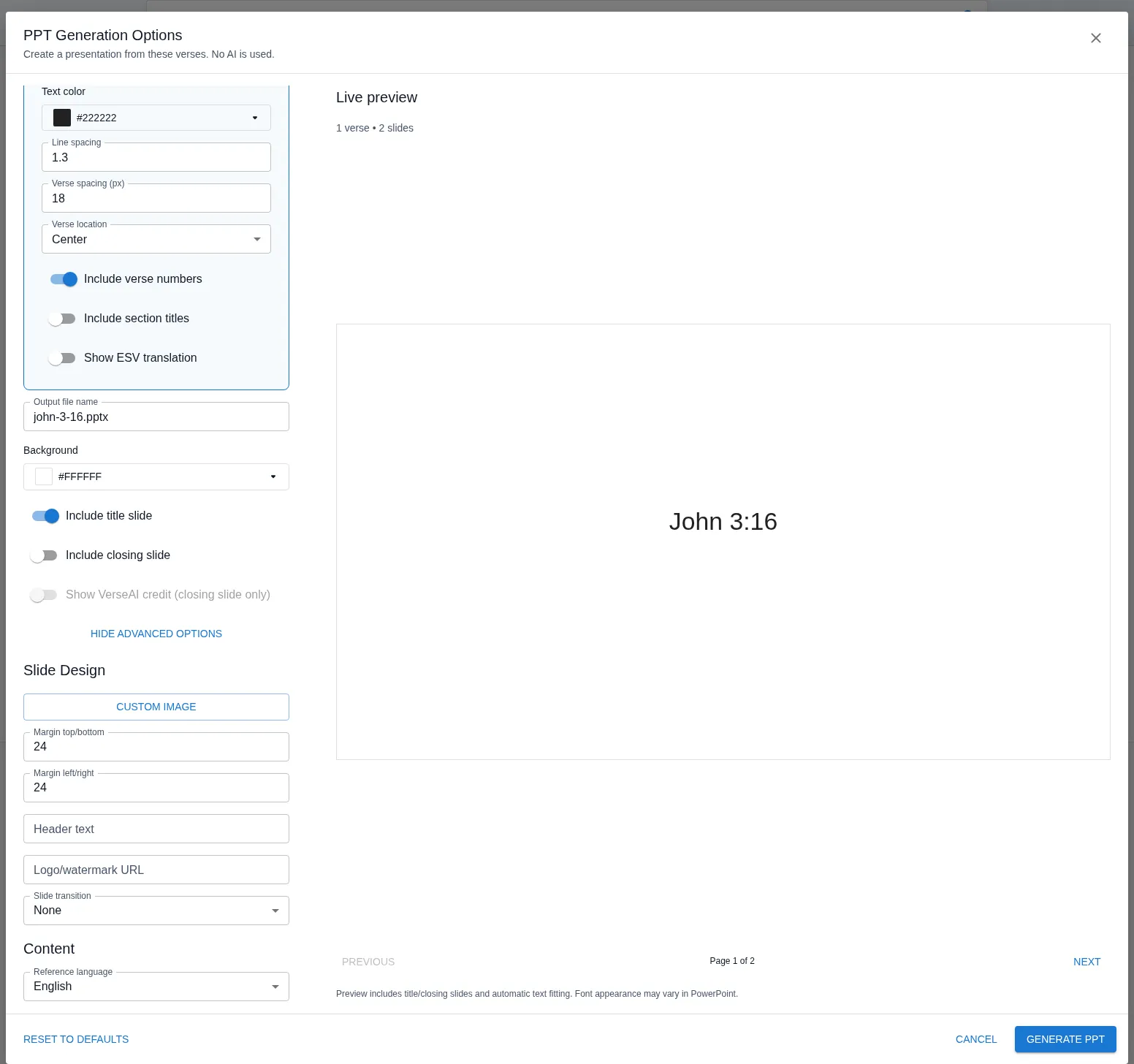
- SHOW ADVANCED OPTIONS — expands the settings that are not in the basic list. HIDE ADVANCED OPTIONS folds them away again.
- CUSTOM IMAGE — a button to bring your own image into the slide design. (Advanced · Slide Design)
- Margin top/bottom — the top and bottom margins of the content area. Default 24. (Advanced · Slide Design)
- Margin left/right — the left and right margins of the content area. Default 24. (Advanced · Slide Design)
- Header text — a header line printed on the slides. Default: empty.
- Logo/watermark URL — paste an image URL and it is placed on the slides as a logo/watermark. Default: empty. The watermark lives here, not in the basic options.
- Slide transition — none · fade · push. Default: none. The transition is written into the file, so the static preview cannot show it — it plays in PowerPoint.
- Reference language — the language of the references printed in the deck (the book names): Korean · English · Spanish. It can be set independently of the UI language. Default: follows the UI language.
Preview
- Summary line — reads "N verses • N slides". It recounts instantly whenever an option changes.
- Page navigation — PREVIOUS · NEXT buttons flip through every slide, with "Page N of N" showing where you are. PREVIOUS is disabled on page 1, NEXT on the last page.
- Check before you generate — pagination, the bilingual layout, and the closing slide are all checkable here. Flip to the end before downloading, so the file holds no surprises.
- Note — the preview includes the title and closing slides and the automatic text fitting. Font appearance may vary in PowerPoint.
The generated file
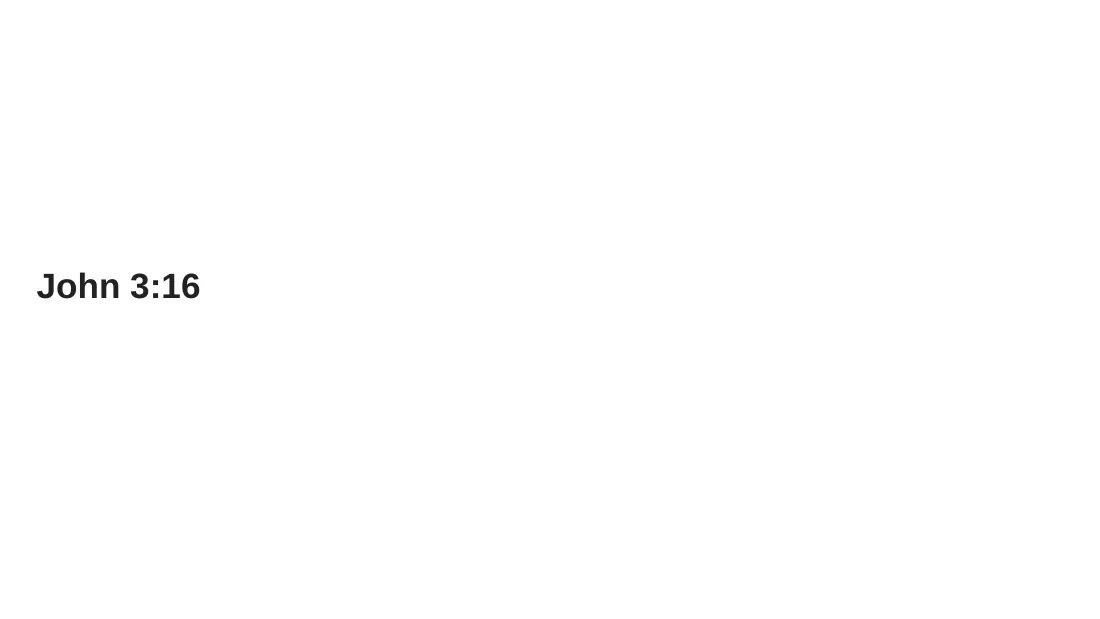
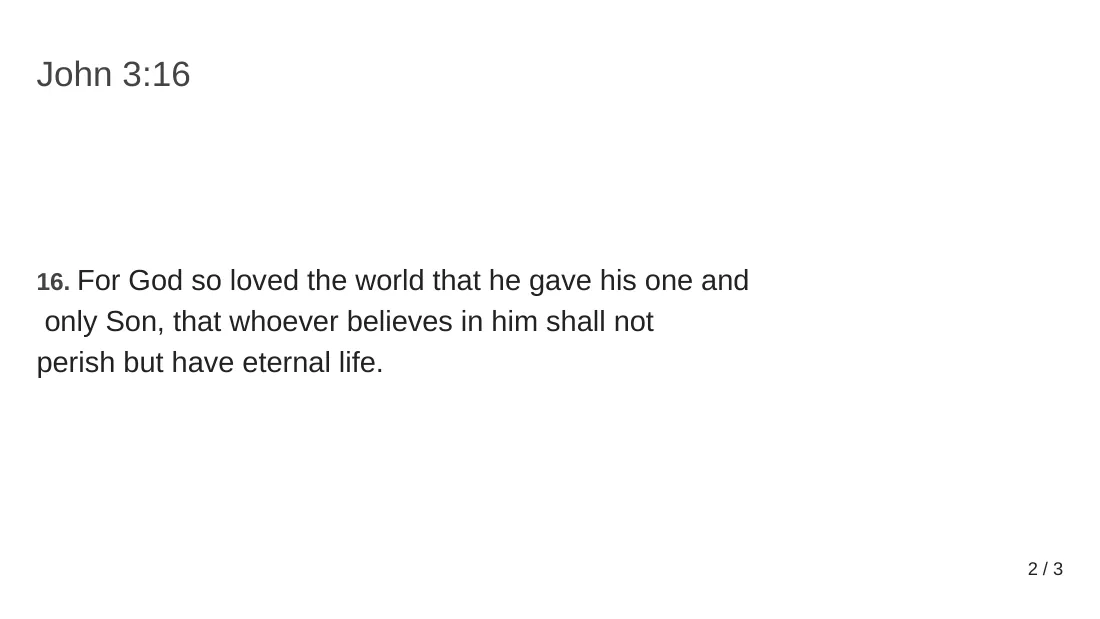

- Pressing GENERATE PPT builds the .pptx with the current options and downloads it right away.
- With the title slide on, the deck opens with the cover, continues with the verse slides, and — with the closing slide on — ends with the thank-you slide.
- A verse slide carries the reference heading, the verse with its verse number, and the footer with the page number.
Defaults at a glance
| Setting | Default |
|---|---|
| Saved configuration | Current settings |
| Verses per slide | 1 |
| Font size | 23 pt |
| Font · footer font | Korean UI: Malgun Gothic · English/Spanish UI: Arial |
| Alignment | Left |
| Text color · footer text color | #222222 |
| Line spacing | 1.3 |
| Verse spacing | 18 px |
| Verse location | Center |
| Include verse numbers | ON |
| Include section titles | OFF |
| Second translation | OFF (order: alternating · reference format: full · italic: OFF) |
| Title location · format · color | Top of slide · full · #444444 |
| Footer text | (empty) |
| Customize footer style | OFF |
| Footer font size · alignment · background | 16 · Center · #FFFFFF |
| Output file name | From the passage (e.g. john-3-16.pptx) |
| Background | #FFFFFF |
| Include title slide | ON |
| Include closing slide | OFF |
| Show VerseAI credit | OFF (enabled only when the closing slide is ON) |
| Margins top/bottom · left/right | 24 · 24 |
| Slide transition | None |
| Reference language | Same as the UI language |
Tips
- Same style every week — save your option set as a configuration and load it in one click each week.
- Bilingual services — turn on the second translation to show two translations on one slide. Verses per slide is then capped at 2.
- Long verses — long text shrinks automatically; if it still doesn't fit, it splits to the next slide. Text never runs off the slide.
- Check before generating — flip through the preview to the last page before you generate.
- Fonts — pick a font the presenting computer has, and the deck looks exactly as previewed.
Troubleshooting
- Can't upload a template — template upload is for signed-in accounts only. Sign in first. Guests can still generate with the built-in options.
- Template rejected — uploads are rejected for security reasons only: macros, externally linked objects, a damaged file. The rejection message states the reason. Ordinary PowerPoint extras (such as printer settings) never cause a rejection.
- File too large — the limits are 50 MB per file, 100 MB per person in total, 3 templates per account, and up to 50 slides per file. Compress the images inside the file to shrink it.
- Deleted a configuration by mistake — deleting a saved configuration runs immediately, with no confirmation prompt. Check that the right configuration is selected before deleting.
- No verses to generate — open PPT while verses are displayed on the results page.
- Download doesn't start — check your browser's download blocking. The file is created on your device, so it downloads as soon as the block is lifted.